The Riser Rebuild: Updating Plumbing Riser Diagrams When Fixture Layouts Change Mid-Project
AutoMEP Team,
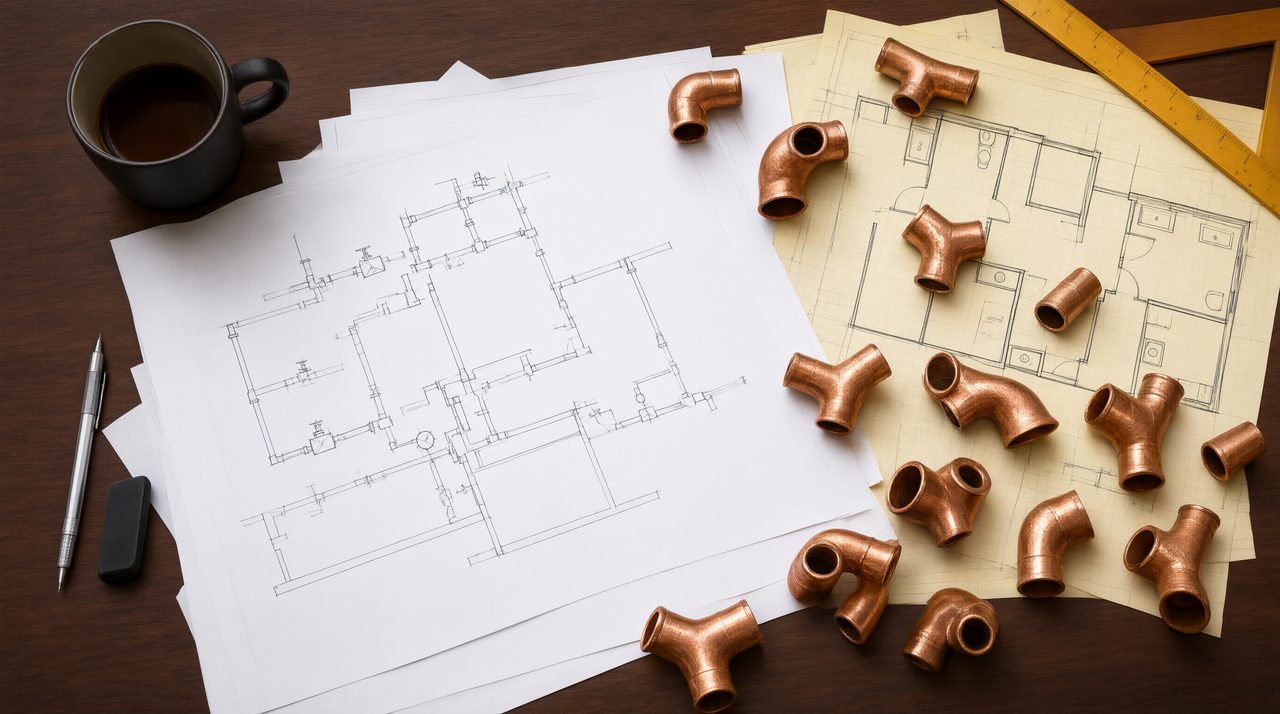
The fixture layout changed. What breaks on the riser diagram first?
How do you keep a plumbing riser diagram accurate when the fixture layout changes mid-project? The reliable way is to update the riser in the same pass as the floor plan, treating the diagram as a live view of the system rather than a document you redraw from scratch. When the architect shifts the restroom core or the owner swaps fixture brands, the riser is the drawing that tells the reviewer and the plumber what the building does, and it has to match the plan.
Riser diagrams are schematics, not scaled plans, which makes people assume they are easy to touch up. In practice, every moved fixture pulls a chain of connected elements: branch lines, stack connections, cleanouts, vents, and the fixture unit counts that justify the pipe sizes. Miss one link and the diagram disagrees with the floor plan, the exact mismatch that generates plan review comments and field RFIs.
What has to change on a riser diagram when fixtures move?
List everything the fixture change touches before you draw anything. On the riser itself, fixture symbols move to new positions or change identifiers when rooms are renumbered. The branch piping that feeds them gets re-routed: horizontal branches reconnect to the stack at new elevations, trap arms get new lengths, and cleanouts shift to stay accessible. Vents follow the fixtures, so any relocated group needs its vent connection verified, especially on multi-story stacks where the wet venting order only works one way.
The supporting data has to follow too. Fixture unit counts in the plumbing schedule change when fixture types or quantities change, and those counts are what sized the water, waste, and vent mains. If a lavatory becomes a water closet or a restroom grows by two fixtures, the schedule, the sizing basis, and any keynote referencing a fixture tag all need the same edit. On permit sets, an outdated fixture count is one of the fastest ways to earn a correction notice, because the reviewer checks the diagram against the schedule first.
How do I keep riser diagrams in sync with floor plan changes?
Treat the floor plan and the riser as a single revision unit. First, mark up the floor plan change completely, including every fixture identifier, before touching the riser, because working from a half-marked plan is how branches get drawn to ghost fixtures. Second, update the riser in the same editing session, while the fixture movement logic is still fresh, instead of flagging it for a later pass on someone else's desk. Third, reconcile the fixture unit schedule immediately and flag any total change to the engineer before the set goes out.
Fourth, walk the cleanout and access notes, since a relocated restroom can hide a cleanout behind a new partition. Fifth, verify the room numbers and fixture tags on the riser match the final plan, because tags are the cross-reference holding the set together. When this sync pass happens every time, the riser never drifts into a stale state and the permit set tells one coherent story.
Why fixture changes are the quiet budget drain on plumbing drafting
Fixture revisions rarely arrive as one big redline. They come as a trickle: the owner wants wall-hung fixtures in the lobby, the architect reworks ADA clearances, the contractor flags a conflict with the ductwork, the designer moves a drinking fountain two doors down. Each revision restarts the same chain of updates on the riser, the schedule, the tags, and the notes. On a mid-size commercial project, this repeated revision work is routinely the largest block of drafting time in the plumbing package, larger than the original production effort.
The economics are what sting. Every hour spent re-editing a riser is an hour the drafter is not producing new work, and the work is detail-sensitive enough that rushing it creates the mismatches reviewers flag. Firms that hand it to junior drafters usually add a senior review pass anyway, putting the most expensive seat back on the most repetitive task. It repeats on every project with an active owner, which is nearly all of them.
Describe the change in plain English instead of redrawing it
This is exactly the repetitive drafting edit AutoMEP absorbs. You upload the DWG and describe the fixture change the way you would explain it to a drafter: move the two lavatories in restroom 102 to the east wall, add a cleanout at the new branch, update the fixture unit schedule to match. The agent reads and indexes the full drawing, writes an operations plan, and executes the edit through Autodesk Platform Services, returning a native DWG that opens in AutoCAD. Failed jobs and no-change jobs are not counted, so you never pay for attempts that changed nothing.
A fixture move can carry the connected updates, the branch re-route, the tag changes, the schedule reconciliation, in one described pass instead of a week of manual redlines. Pricing starts at $39 per month for the Starter plan, with a 7-day free trial that asks for no credit card, a straightforward comparison against a drafter's loaded hourly cost. When the next fixture shuffle arrives mid-project, spend your review time on engineering judgment instead of chasing symbols across a riser diagram. Try it on your live drawing at automep.app.
Frequently asked questions
Do I need to install a plugin or learn macros to use AutoMEP?
No. AutoMEP is a web app, so there is nothing to install, no plugin to roll out, and no macros to write. Sign in with a magic link, Google, or Microsoft account, upload a DWG or Revit file, and describe the edit in plain English.
Will AutoMEP change sheets I have already issued?
AutoMEP only edits what you describe. Your existing content stays intact, and when you apply your own title blocks or CAD standards, only new work follows them, existing sheets are never changed. You get a native file back that opens in AutoCAD or Revit, and a licensed professional should review the edited drawing before anyone builds from it.
What file types does AutoMEP accept?
AutoMEP accepts DWG files from 2007 and later, and Revit 2024, 2026, and 2027 files. DXF files are not supported, and linked xref files are read-only, AutoMEP reads them for context but never edits them, so there is no need to bind them first.