The Thermostat Move: Updating Controls Drawings When Thermostat Locations Change
AutoMEP Team,
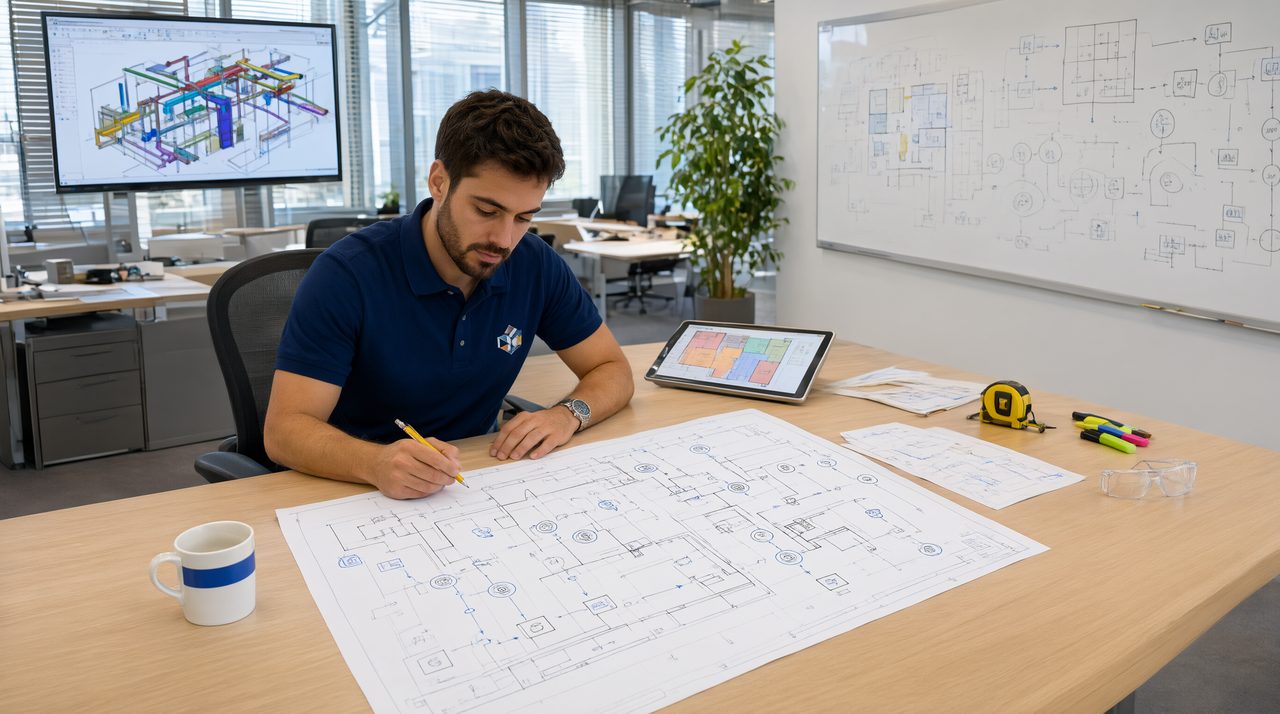
When a thermostat moves, update every drawing that shows it, starting with the controls plan, the wiring path, and the schedule that names the zone it serves. Its location affects sensing, wiring, and control sequences, so if only the floor plan moves, the installer gets two different answers to a simple question, and that is where rework begins.
Thermostat moves happen for ordinary reasons. An architect shifts a partition, a tenant changes how a room will be used, or a controls reviewer notes that the original spot sits in direct sun or near a supply diffuser. The control point needs to follow the room, and the drawings need to tell one consistent story about where that point now lives.
Which drawings actually show a thermostat?
Start by listing every sheet that touches the device before you change any of them. The mechanical floor plan shows the thermostat symbol and its tag, but a controls diagram may also show the sensor, its wiring, and the equipment it calls. An electrical plan may show the low voltage path, a reflected ceiling plan may show nearby diffusers that affect sensing, and a schedule may list the thermostat by tag, zone, and equipment served.
Missing one of those sheets is the most common failure in a thermostat move. The plan looks correct in isolation, while the controls diagram still points at the old wall and the schedule still names the old room. Make the sheet list first, then work through it in order.
- Mechanical floor plan, with the thermostat symbol, tag, and room it serves.
- Controls diagram or sequence, with the sensor, wiring, and equipment it calls.
- Electrical or low voltage plan, with the wiring path and any junction or panel reference.
- Reflected ceiling plan, to check nearby diffusers, lights, and obstructions that affect sensing.
- Schedules, details, and notes, with the tag, zone, mounting height, and equipment served.
How do you update the wiring and controls sequence?
Moving the symbol is the easy part. Trace the new path from the thermostat to the equipment it controls, and check whether the route crosses a different wall type, a rated assembly, or another trade's work. Note any junction or conduit change on the plan, and confirm the controls diagram shows the same route and equipment. If the thermostat now serves a different zone, say so plainly in the sequence, because a zone change is a design change, not just a drafting change.
Sensing conditions deserve the same attention. A thermostat placed in direct sun, in the discharge path of a supply diffuser, or behind a tall cabinet will read the wrong temperature and drive the wrong response. Check its new neighbors on the plan and in the reflected ceiling plan, and note the reason for the move in the revision note.
What happens to schedules, tags, and details?
Tags and schedules are the memory of the drawing set, and a thermostat move tests that memory. If the tag stays the same but the room changes, update the schedule entry to match the new room and zone. If the zone changes, check whether the tag should change too, and update every sheet that carries it. A schedule that disagrees with the plan is a second instruction that the field team has to resolve on site.
Details matter here because thermostats are installed by people who work from the wall, not from the diagram. Confirm the mounting height, the wall type, and any backing or blocking note still match the new location. If the new wall is a different construction, flag it for the reviewer rather than copying the old detail across unchanged.
How do you check the full set before you issue it?
Walk outward from the move, sheet by sheet, until you reach a sheet that does not touch the change. Check the floor plan against the controls diagram, the controls diagram against the schedule, and the schedule against the detail. Look for orphaned leaders and notes that still describe the old wall. Confirm new geometry sits on the layers your team expects, because AutoMEP puts new geometry on AIA or NCS layers automatically, or on your office's own CAD standard layers when a project uses one.
Be clear about the limits of any edit, including one made with an AI drafting tool. AutoMEP does not do clash detection or coordination checks between trades, so coordination stays with your own review and tools. Treat the edited drawing as a strong draft that still needs a licensed professional's review before anyone builds from it. That review is not a formality, it is the step that catches a zone error, a sensing problem, or a schedule mismatch while it is still cheap to fix.
A plain English description works well for this kind of change: move the thermostat from one wall to another, update the wiring path, update the schedule, and keep the tag and zone consistent. Describe the old location, the new location, and anything that changed with it, such as the zone or the equipment served.
Frequently asked questions
Does moving a thermostat change the equipment sizing?
Usually not, because the load and the equipment stay the same while only the sensing point moves. If the move also changes the zone boundary or the room use, that is a different question, and the engineer of record should confirm whether sizing, airflow, or control sequences need to change with it.
What file types work for this kind of edit?
AutoMEP works with DWG files from 2007 and later, and with Revit 2024, 2026, and 2027. Revit 2025 is not supported, and DXF is not supported, so confirm your file type before you start an edit. It needs no install, no plugins, and no macros, and it covers HVAC, electrical, and plumbing work.
How much does it cost to try this workflow?
Plans start at $39 per month for Starter, $99 per month for Pro, and $249 per month for Team, with a 7 day free trial on all plans and no credit card until checkout. Extra jobs overage is $2.50 per unit of usage, with a hard cap of $25 per month, off by default, and available on paid plans only.
Treat a thermostat move as a setwide change, not a symbol move, and your drawings will stay consistent from plan to schedule to field. To see how plain English edits work on your own DWG or RVT files, visit AutoMEP.