How to Check DWG Layers Against NCS Standards: A Sample Report
AutoMEP Team,
Layer standards drift one drawing at a time. A consultant sends a background with their own names, someone draws a quick fix on layer 0, a block comes in from an old project, and by the third revision nobody is sure which layers the plot style actually depends on. AutoMEP's free DWG layer checker shows you where a drawing stands in a few seconds. This post walks through a real report so you know what each part means and what to do about it.
The drawing we checked
We used a two-story house plan with a drainage layout, the kind of background that gets passed between offices. It came from a firm that doesn't follow the US National CAD Standard, so its layers mix Spanish names, a Norwegian floor layer and a few NCS-style names someone added later. We dropped it into the checker with no office template, so every layer was checked against the NCS format: a discipline letter, a hyphen, then groups of four characters, like E-LITE or M-HVAC-SUPP.
The checker read the file inside the browser tab. Nothing was uploaded, which matters when the drawing belongs to a live project.
What the report found
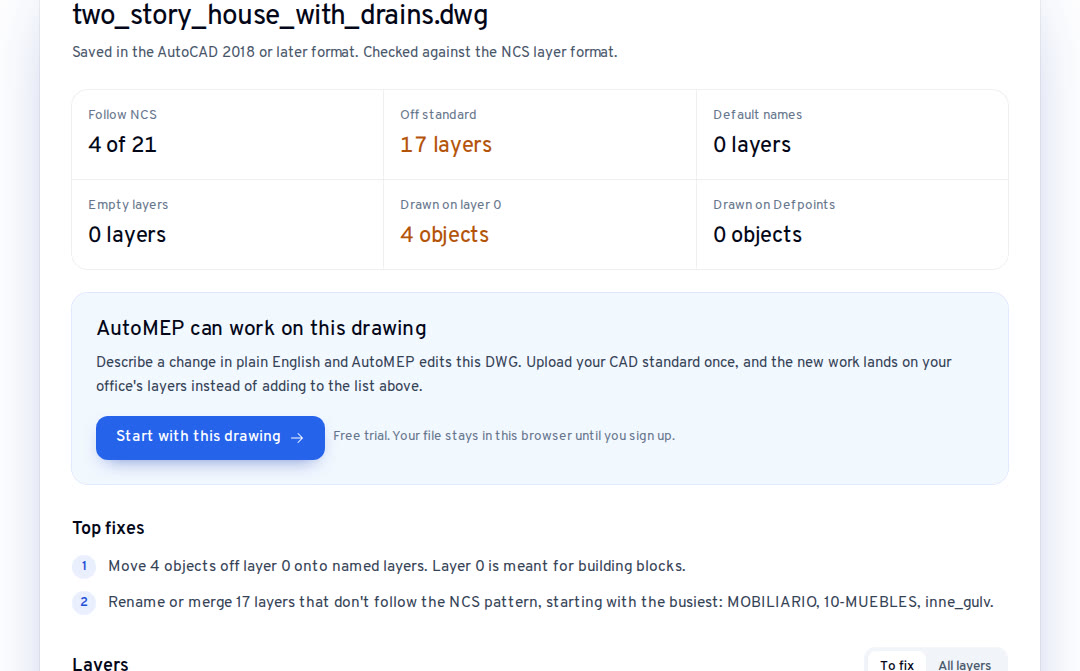
The summary at the top of the report said 4 of 21 layers follow NCS. Layer 0 and Defpoints aren't counted in that figure, since AutoCAD creates them. The rest of the summary:
- 17 layers off standard
- No layers with a default name like Layer1
- No empty layers
- 4 objects drawn straight onto layer 0
- Nothing drawn on Defpoints
Under the summary, the report says whether AutoMEP can work on the drawing. This one was saved in the AutoCAD 2018 format, so it can.
Reading the top fixes
The report ranks its fixes. Here the first was to move the 4 objects off layer 0 onto named layers. Layer 0 is meant for building blocks: geometry inside a block that sits on layer 0 takes the layer of wherever the block is inserted. Lines drawn on layer 0 in the drawing itself belong to no discipline, so you can't freeze or plot them by trade. Four objects is a quick job.
The second fix was to rename or merge the 17 off-standard layers, starting with the busiest: MOBILIARIO, 10-MUEBLES and inne_gulv. Busiest means the most objects, counting both what's drawn and what's inside block definitions. MOBILIARIO (furniture) had 10 objects drawn in the plan and 706 inside blocks, so renaming it changes how every furniture block in the drawing displays and plots. That's why it comes first.
Why some NCS-looking names still fail
A few layers looked right at a glance and still failed, and the table says why for each one. A-SECTMBM has a seven-character group where NCS expects four. G-ANNO-TAG has a three-character minor group. EQUIPOS COCINA and LINEA 7 contain spaces, which NCS names never do. Names starting with a number, like 10-MUEBLES, have no discipline letter at all.
These are the names that cause trouble with office layer filters and plot style tables, because they almost match. A filter for A-*-* catches A-SECTMBM, while a layer state built from the NCS list doesn't.
Checking against your own template instead
Plenty of offices use their own standard rather than NCS. Add your office template (a DWG or DWT) next to the drawing and the checker compares each layer with your template's layer list instead. Names are matched without regard to capitals, and anything not in your template is flagged. Layers from attached reference drawings are listed but not judged, since they belong to those files.
What to do with the report
In full AutoCAD, the Layer Translator (LAYTRANS) maps old layer names to your standard in one pass and can save the mapping for the next drawing from the same consultant. LAYMRG merges a layer into another and moves its objects with it. PURGE clears out empty layers once the rest is done. For a drawing you'll keep working in, this cleanup is worth an hour now rather than a messy plot set later.
For the 4 objects on layer 0, select them with the Quick Select filter on layer 0 and move them to the right layer. Check that none of them are block inserts first, since inserts on layer 0 are sometimes deliberate.
Where AutoMEP fits
AutoMEP doesn't rename layers or move existing objects, so the cleanup above is still yours. What it does is keep new work from adding to it. Upload your CAD standard once, then describe a change in plain English, and the devices, ductwork and tags AutoMEP draws land on your office's layers. From the report, Start with this drawing hands the same file to AutoMEP, and it stays in your browser until you create an account.
If you work in Revit too, the free Revit version checker tells you which release saved a model, and whether it's workshared, without opening Revit.
Frequently asked questions
Is the drawing uploaded when I use the layer checker?
No. The checker reads the DWG inside your browser tab and nothing is sent to AutoMEP or anyone else. If you save the report as a PDF, the only thing sent is the email address you type.
Which DWG versions does the checker read?
Drawings saved by AutoCAD R12 through the current release. When part of a file can't be read, the checker says so instead of showing a report it can't stand behind.
Why does the report count objects inside blocks separately?
Objects inside a block definition belong on layer 0 or on the block's own layers, and they move with the block. The report keeps them in their own column so a layer full of block geometry isn't mistaken for linework drawn in the plan.
- Free DWG layer checker: Check a drawing
- Free Revit version checker: Check a model
- How to Automate AutoCAD Work: Read the guide
- AutoMEP home: Visit AutoMEP