Skip to content

Examples

Before and after: real AutoMEP edits on real drawings

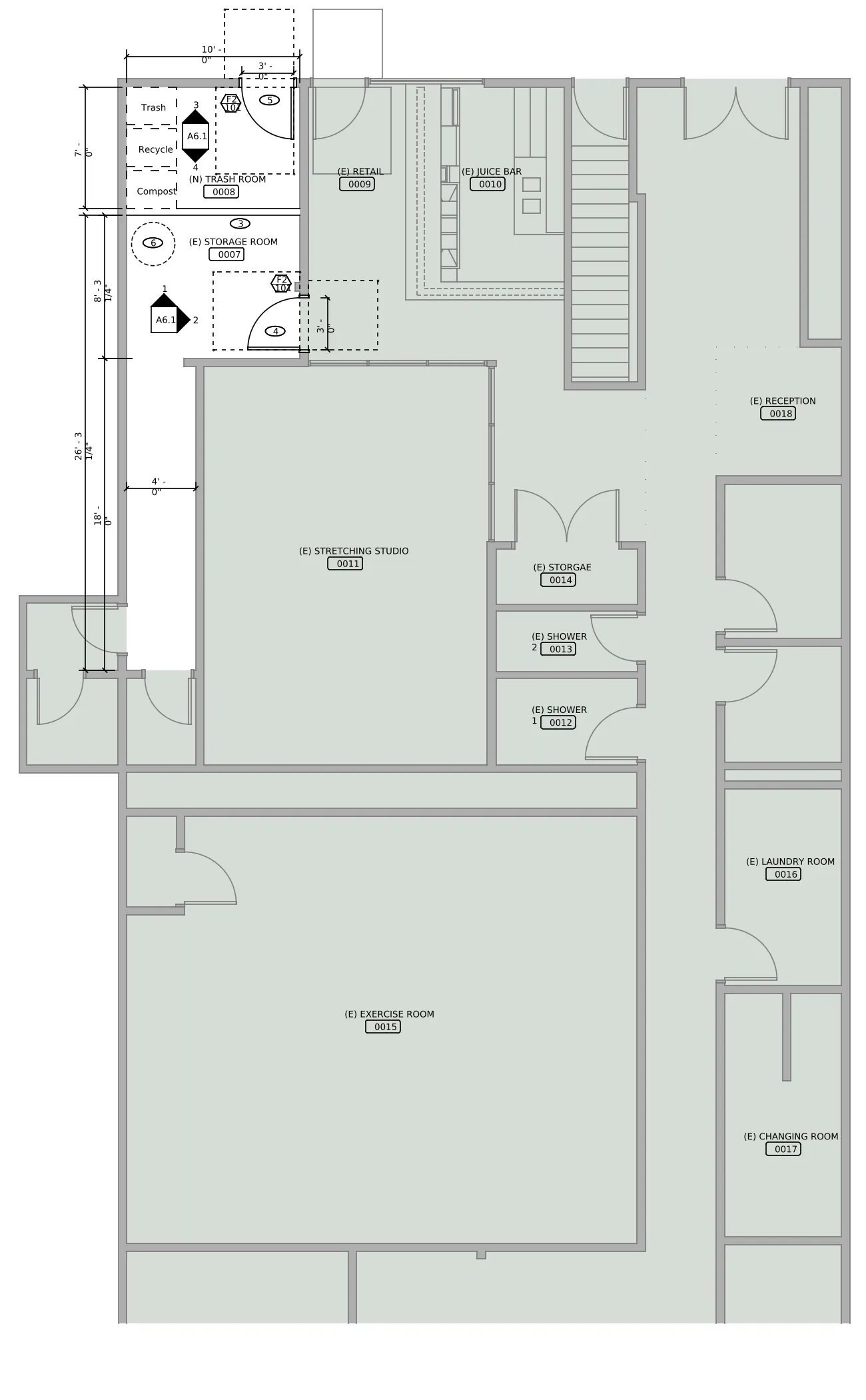
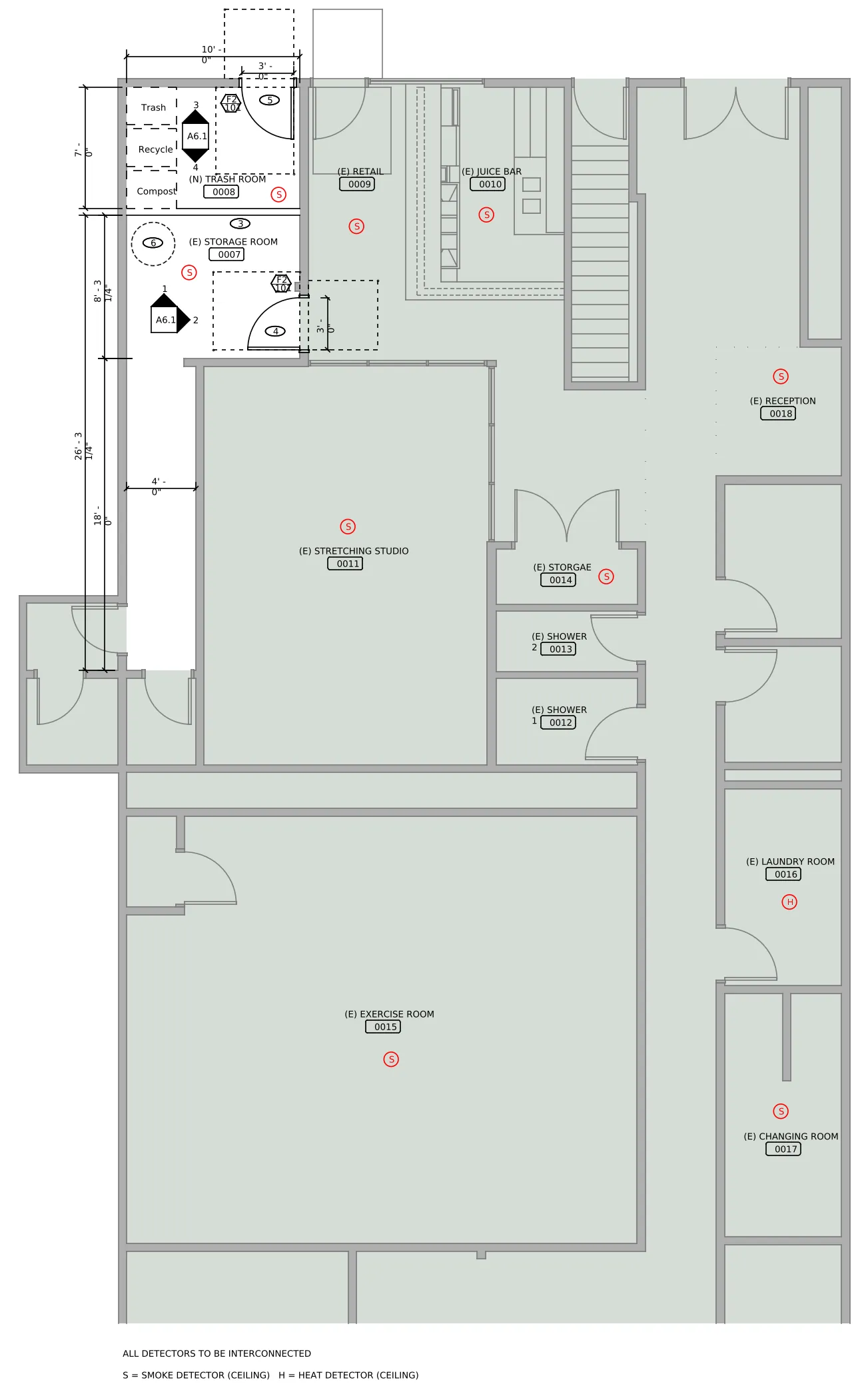
Each example here is a drawing AutoMEP edited from a request typed in plain English. The before image comes from the uploaded file and the after image from the file AutoMEP delivered. Both are framed the same way, so the slider shows only what the request changed.

Drag the handle to compare, or tab to it and use the arrow keys. Under each drawing you'll find the request as it was typed (minus the plan's room numbers), what AutoMEP changed, and what an engineer should check before the drawing goes out. AutoMEP's results are advisory, and a licensed professional reviews them before anyone builds from them.

AutoCAD floor plan of a fitness studio before the request, with room name tags and no fire alarm devices
The same floor plan after the request, with a smoke detector in each listed room, a heat detector in the laundry room and none in the showers

AutoCAD DWG, fire alarm

Smoke and heat detectors, kept out of the showers

An existing AutoCAD floor plan of a fitness studio.

The request

“Add a ceiling smoke detector inside each of these rooms: the Trash Room, the Storage Room, Retail, Juice Bar, Stretching Studio, the small storage room with the double doors, Exercise Room, Changing Room and Reception. Each detector must sit inside the walls of its own room, near the middle, never in a doorway, a door swing or the space outside the room's doors. Do not put smoke detectors in either shower room. In the Laundry Room, add a heat detector instead of a smoke detector. Keep every device clear of walls, doors, room tags, dashed lines and other linework, and add a general note below the plan that reads ALL DETECTORS TO BE INTERCONNECTED.”

Room numbers from the plan are left out here.

What AutoMEP changed

  • A ceiling smoke detector inside each room on the list, from the trash room to reception
  • A heat detector in the laundry room in place of a smoke detector, and nothing in either shower
  • Every device inside its own room's walls, clear of door swings, room tags and the dashed clearance lines
  • The general note below the plan, with a legend line for the smoke and heat detector symbols

What to check before it goes out

The drawing had no detector symbols of its own, so AutoMEP drew simple lettered circles on a new fire alarm layer. Swap in your office's symbols if you use different ones. Retail and the juice bar share one open space, so confirm each detector sits on the side you count as that room, and check the spacing in the larger rooms against your code before you issue the plan.

How we choose what goes on this page

A result goes up only after we've looked at the delivered drawing ourselves. The symbols have to be the right ones, nothing can sit on a wall, a door swing or a label, and nothing can land outside the plan. Results that miss any of that stay off the page, even when the rest of the job went well. Every drawing here is one of the test files we use to check AutoMEP's work, never a customer's.

Common questions

Yes. Each example is a job AutoMEP ran from the request shown. The after image is drawn from the file AutoMEP delivered and the before image from the file that was uploaded, at the same scale and position. Nothing was redrawn or touched up.

Test drawings we keep for checking AutoMEP's work. We never publish a customer's drawing or request.

Yes. AutoMEP's results are advisory, and a licensed professional should review every drawing before it's issued, the way you'd check a junior drafter's work. Each job comes with review notes on what to look at.

It reads the drawing before it changes anything and reuses the symbols and layers it finds. When a drawing has no symbol for something, as in the fire alarm example, it draws a simple one on a new layer and says so in its notes. You can also upload your office's CAD standard, and new work follows its layers, text styles and symbols.

Yes. AutoMEP edits Revit RVT models as well as AutoCAD DWG drawings. The examples on this page are AutoCAD drawings for now, so the quickest way to see a Revit result is to try it on one of your own models with the free trial.

Try it on your own drawing

Upload a DWG or RVT, describe the change the way you'd mark up a print, and compare what comes back with what you'd have drawn. The trial is free.

Start free trial